

Track and resolve
Find supplier invoices and investigate AP traffic
Inbound documents are supplier documents received by your tenant. AP transactions means Access Point transactions, not an accounts-payable ledger.
Before you start
- An active inbound/both participant and a supplier exchange to investigate.
Steps
- Open Transactions, select Inbound, and filter by date or document reference.
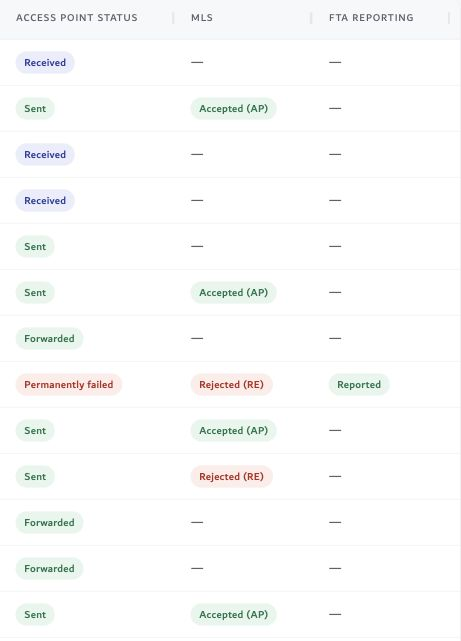
- Open the document. Review delivery to your organization, the MLS sent to the sender and any FTA result.
- Download available XML or use Readable view to inspect the business document.
- If the connected back office did not receive it, check the forwarding failure and webhook/integration history separately.
- For transport investigation, open AP transactions. Filter by direction, Peppol ID, status and dates.
- Use the matching AS4 message or AP reference to relate the protocol record to the business document. Open a detail record if your release offers a link or panel; otherwise give the available IDs to support.
Check the result
The supplier invoice can be located, and transport receipt is distinguished from successful forwarding into your ERP.
Notes & troubleshooting
If a supplier invoice is missing
- Confirm the supplier used your active participant on the correct network.
- Check access to the relevant company and remove restrictive filters.
- Ask for the supplier's message reference and send date.
- If received but not forwarded, investigate your receiving endpoint rather than asking for another copy immediately.
Questions and field requirements
A supplier says they sent us an e-invoice, but it is not in Transactions?
- Ask the supplier which Peppol address they sent to: it must be your company's address (0235: followed by your TIN). An address with another identifier reaches another participant.
- Check that your Peppol address is live on the E-Invoicing page: an address on hold receives nothing until the FTA registry confirms it.
- Inbound documents appear under the Inbound tab of Transactions, not among your sent invoices.
- Ask the supplier for the delivery confirmation their provider gave them, and send it to Azdan if the document still cannot be found.
Product workflow reference: Azdan Help Center, reviewed 1 November 2026. Examples are illustrative.
Related guides
Azdan UAE E-Invoice documentation · ERP-neutral workflows. Confirm your deployment’s current labels, permissions and API contract before making changes.