

Sign in and protect your account
Create or activate your Azdan account, sign in with your work email and set up mandatory multi-factor authentication (MFA). Keep your recovery codes available so you can regain access if your authenticator is unavailable.
Before you start
- A user account or activation invitation from your organization.
- Your organization's portal address and access to your authenticator app.
Steps
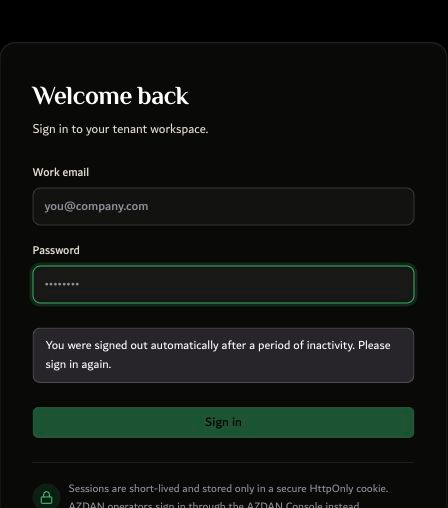
- Open your organization's Tenant Console sign-in page. The reviewed development address is https://peppol-dev.azdanapps.com/portal/login; use the production address supplied by Azdan for live work.
- Enter your registered work email and password, then select Sign in.
- If prompted for verification, enter the current six-digit code from your authenticator app. Complete the on-screen verification action.
- If enrollment is required, follow the Security setup flow: add the account to your authenticator, enter a fresh code, and complete enrollment. Store any recovery information the portal actually provides in your approved secure location.
- Confirm the active tenant before continuing. Use the account menu to sign out when you finish.
Your tenant workspace opens and its tenant identifier matches your organization. In Security, MFA shows enabled.
Notes & troubleshooting
If you cannot sign in
- Re-enter the registered email and password carefully.
- For an expired code, wait for a fresh authenticator code and enter it promptly; check your device clock.
- If your authenticator is unavailable, use one of the eight single-use recovery codes shown when MFA was enabled, or ask your administrator to reset MFA.
- Do not send passwords, OTPs, QR enrollment secrets, or recovery codes to support.
Questions and field requirements
How do I create a free account?
Choose Create free account on the sign-in page or on the Azdan website. Enter your name, work e-mail, a password that meets the rules, your company or account name and (optionally) a phone number, then accept the E-Invoicing Service Agreement. Azdan e-mails you a verification link; it works once and expires in 24 hours. After verifying, sign in: multi-factor authentication is set up first, then you connect your company with EmaraTax.
The account starts on the Free plan of the Azdan price list: up to 120 documents a subscription year at no charge, renewing every year. Documents only flow once your company is linked through EmaraTax.
If the e-mail address already has an Azdan account, no second account is created: the e-mail tells you to sign in instead. Register from one e-mail address per company administrator; extra companies join the same account through EmaraTax.
How do I activate my account?
Your administrator (or the EmaraTax linking) creates the account and Azdan e-mails you an activation link. Open it, choose a password that meets the rules and sign in with your work e-mail.
The link is valid for 72 hours and works once. If it has expired or was used, ask your administrator to resend it; sending a new link cancels every older one.
What are the password rules?
- 12 to 200 characters.
- Letters and at least one number.
- It must not contain the part of your e-mail address before the @ (when that part is 4 characters or longer).
- When changing it, the new password must differ from the current one.
There is no rule about capital letters or symbols, but a long phrase with numbers is stronger than a short word.
How do I set up multi-factor authentication (MFA), and why is it required?
MFA is mandatory on every Azdan account: until it is set up, the console only lets you reach the set-up page. Open Security, add Azdan to an authenticator app (Microsoft Authenticator, Google Authenticator, 1Password or Authy) by scanning the QR code or typing the key, then enter the 6-digit code the app shows. The code changes every 30 seconds.
At every sign-in you then enter your password and the current code, or a recovery code. The sign-in step stays open for 5 minutes.
If you switch MFA off you will have to set it up again before you can continue, for example with a new phone.
What are recovery codes and when do I use them?
When you enable MFA, Azdan shows 8 recovery codes once, in the form xxxxx-xxxxx. Store them somewhere safe. If you lose your phone, a recovery code replaces the authenticator code at sign-in and in any confirmation.
Each code works once; capital letters and hyphens do not matter. Setting MFA up again gives you a new set.
Why does an action ask for my authenticator code again?
Critical actions are confirmed with the current code from your authenticator app (or a recovery code) even though you are signed in: changing your password, changing a user's role, company access or status, resetting a user's password, revoking an API key, changing or deleting a webhook's authentication or secret, disconnecting NetSuite and ending the EmaraTax linkage.
Each code works once. After 5 wrong codes within 10 minutes the action is locked for a few minutes.
How do I change my password?
Open My Profile from the account menu. Enter your current password, the new one twice and the code from your authenticator app. After the change your other sessions are signed out; this one stays signed in.
After 5 wrong current passwords within 15 minutes, changing the password is locked for a while.
I forgot my password. What do I do?
Ask your account administrator to reset it from the Users page. You receive a new temporary password, shown to the administrator once, and set your own on first sign-in. If you are the only administrator, contact Azdan at peppol@azdan.com.
Why can I not sign in?
- A wrong e-mail or password: the message is the same for both, to protect the account.
- Your account is still waiting for activation: open the activation link, or ask your administrator to resend it.
- Your account was disabled by an administrator.
- The company's Azdan account is suspended: the console says so after sign-in.
- Too many attempts: wait a few minutes and try again.
I cannot sign in, or the code from my authenticator is refused. What do I check?
- A wrong e-mail or password gives the same message for both; type them again or ask your administrator for a new temporary password.
- An authenticator code is valid for a short time: enter the current one, and check that the phone's clock is set automatically.
- Lost the authenticator? Use a recovery code, or ask your administrator to reset multi-factor authentication for your account.
- After several wrong attempts the account waits a few minutes before trying again.
Use the account guidance above for activation, passwords and MFA.
Form-field reference
| Field | Requirement | What to enter |
|---|---|---|
| Work e-mail | Required | The e-mail address your Azdan account was created with. It is your username and the address Azdan writes to. A valid e-mail address. Capital letters do not matter. EXAMPLE you@yourcompany.ae |
| Password | Required | Enter your existing account password. When creating or changing a password, follow the 12–200 character new-password rules above. After repeated failed sign-ins, wait before trying again. |
| Verification code | Required | The second step of sign-in: the code from the authenticator app you linked to this account, or one of your recovery codes. The 6-digit code shown now (it changes every 30 seconds), or a recovery code in the form xxxxx-xxxxx. The sign-in step stays open for 5 minutes. EXAMPLE 123456 |
| New password | Required | The password you will sign in with from now on. 12 to 200 characters, with letters and at least one number. It must not contain the part of your e-mail address before the @. |
| Confirm password | Required | The same password again, to catch a typing mistake. Must match the new password exactly. |
| Current password | Required | The password you sign in with today. It proves that it is you who is changing it. After 5 wrong passwords within 15 minutes, changing the password is locked for a while. |
| Authenticator code | Required | A critical action (changing a password, a user's role or access, revoking a key, deleting a webhook) is confirmed with the current code from your authenticator app, or a recovery code. The 6-digit code shown now, or a recovery code. Each code works once; after 5 wrong codes the action is locked for 10 minutes. EXAMPLE 123456 |
| Verification code | Required | After adding Azdan to your authenticator app, enter the code it shows to prove the link works. Multi-factor authentication is then switched on. The 6-digit code shown now; it changes every 30 seconds. EXAMPLE 123456 |
| Verification code | Required | Switching multi-factor authentication off is confirmed with a code from your authenticator app, or a recovery code. MFA is mandatory, so you will set it up again before continuing. The 6-digit code shown now, or a recovery code. EXAMPLE 123456 |
| Display name | Required | Your full name as colleagues see it in the console and in the audit log. Required, 1 to 120 characters. EXAMPLE Mariam Al Ali |
| Phone | Optional | A number colleagues or Azdan can reach you on. It is not used for sign-in. Optional. Digits, spaces, brackets and dashes, up to 32 characters; start with the country code. EXAMPLE +971 4 123 4567 |
| Job title | Optional | Your role in the company, shown next to your name. Optional, up to 80 characters. EXAMPLE Finance lead |
| Time zone | Optional | Every date and time in the console is shown in this zone. Stored on your account, so it follows you to any browser. A standard time zone name; Asia/Dubai is the default. EXAMPLE Asia/Dubai |
| Company or account name | Required | How your account is named in Azdan while you register. Your company's legal name, TIN and VAT TRN come from the Federal Tax Authority when you connect through EmaraTax; they are never typed here. 2 to 200 characters. You can rename the account later in Company profile. EXAMPLE Al Ali Trading LLC |
| E-Invoicing Service Agreement | Required | Your acceptance of the Azdan E-Invoicing Service Agreement, recorded with the version, date, address and browser. It is what makes you an Azdan customer; the same receipt is kept for accounts created through EmaraTax. Required. Read the agreement from the link; only the current version can be accepted. |
Product workflow reference: Azdan Help Center, reviewed 1 November 2026. Examples are illustrative.
Related guides
Azdan UAE E-Invoice documentation · ERP-neutral workflows. Confirm your deployment’s current labels, permissions and API contract before making changes.