

Create and send documents
Upload invoice XML or import CSV lines
Choose XML when your accounting system already creates the document. Choose CSV line import when you want to populate a single invoice form from a spreadsheet.
Before you start
- A confirmed sender/receiver and an approved file in the format expected by the portal.
Steps
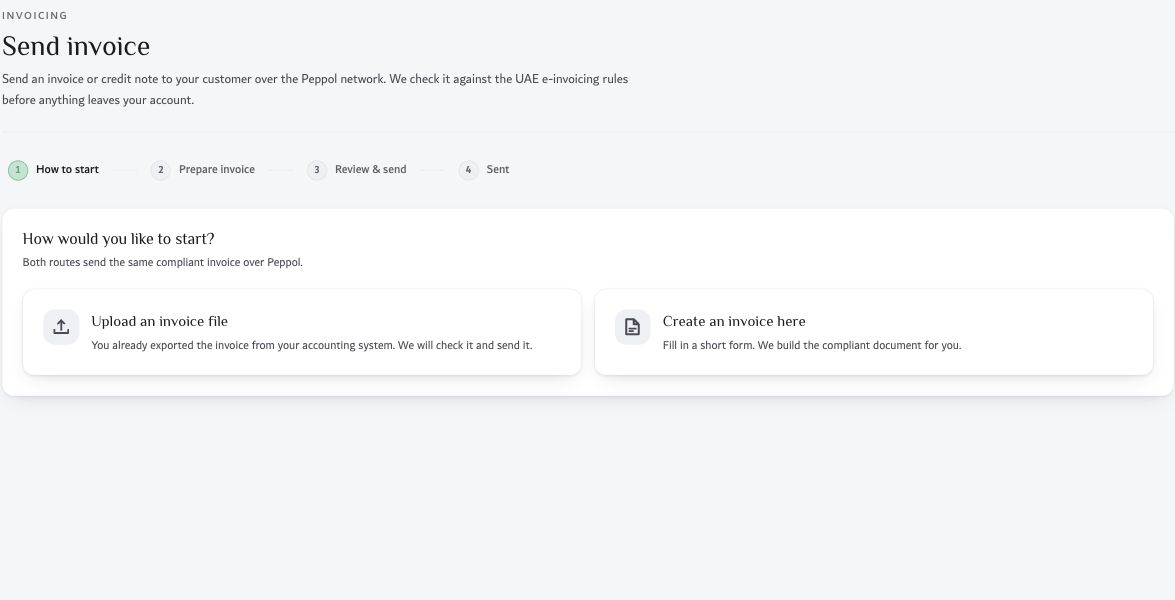
- For XML, open Send invoice > Upload an invoice file.
- Select the sender, customer Peppol ID, invoice category and document type.
- Download the sample XML if you need a format reference. Replace all example values using your accounting-system output, not by copying sample identities.
- Browse for the XML file or drop it in the upload area. The observed upload limit is 15 MB.
- Continue to review, resolve validation findings and check the document before using the final send action.
- For CSV, start with Create an invoice here. Under Start from a spreadsheet, download the CSV template and prepare one row per invoice line.
- Upload the CSV, up to the observed 2 MB limit. Review the imported lines, then complete the remaining invoice fields and normal review steps.
Check the result
The intended XML is reviewed successfully, or the expected CSV lines appear with correct quantities, prices and VAT details. Track any sent document by transaction ID.
Notes & troubleshooting
Common file issues
- Wrong template or column names: start again from the portal template.
- Missing seller details: complete Company profile; CSV seller details come from the selected company.
- Invalid XML: compare the structural/rule finding with the generated sample and your ERP export.
- A sample download is a template, not evidence that your edited file will validate.
Related guides
Azdan UAE E-Invoice documentation · ERP-neutral workflows. Confirm your deployment’s current labels, permissions and API contract before making changes.