
Infor CloudSuite Industrial UAE E-Invoice processing with Azdan
Prepare and review a customer invoice, follow its progress in Azdan, and reconcile the result in Infor CloudSuite Industrial. This guide also covers failed transactions and credit notes.
Your connection is already set up. This guide follows the SyteLine browser application, from a customer order through invoice posting. Use your company’s existing approval and release process. The demonstration screens use a sample company; apply your own UAE customer and tax settings.
Start with the invoice already created by your sales or service process. The location of the release action and returned Azdan results depends on your company’s configuration.
1. Find the customer order or existing invoice
Confirm the selling site and company, then open Customer Orders. Find the order by its number or customer and review its billing progress. If the invoice already exists, open that record rather than invoicing the same shipment again.
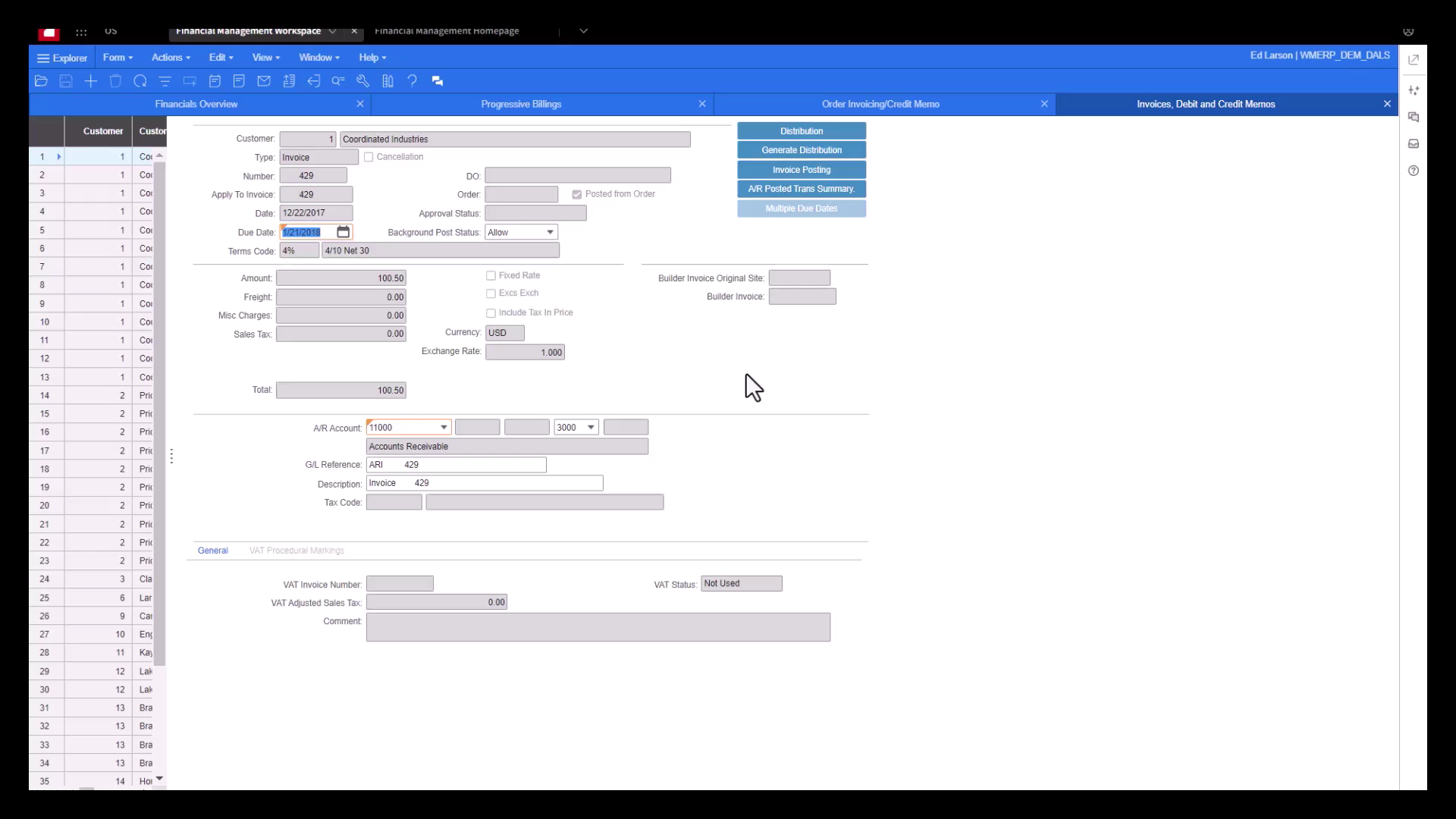
For an invoice that does not arise from a sale or return of inventory, your finance team may use Invoices, Debit and Credit Memos. Inventory sales normally follow Order Entry and shipment invoicing. Keep these routes separate.
2. Confirm the customer, terms and shipped quantities
- Review the bill-to customer, ship-to location and legal billing address. Check the tax registration and electronic delivery identifiers used by the connection.
- Check the customer order reference, currency, payment terms and any credit or invoice hold. Resolve the underlying reason before releasing a hold.
- Compare the order lines with the shipment: item, description, quantity, price and discount. Only bill the quantity that is ready for invoicing.
- Use the To Be Invoiced Report to review shipped quantities that have not yet been billed. Investigate missing or unexpected lines before processing.
3. Generate and check the customer invoice
Open Order Invoicing/Credit Memo. Set Invoices or Credit Memos to Invoice. Restrict the selection to the intended customer, order or shipment, then check the invoice date and other options used by your company.
The order must have a shipment transaction and its lines must be available for invoicing. Review the proposed amounts with the available preview, then select Process when authorized. This step creates the invoice and receivables transaction; it is more than printing an existing PDF.
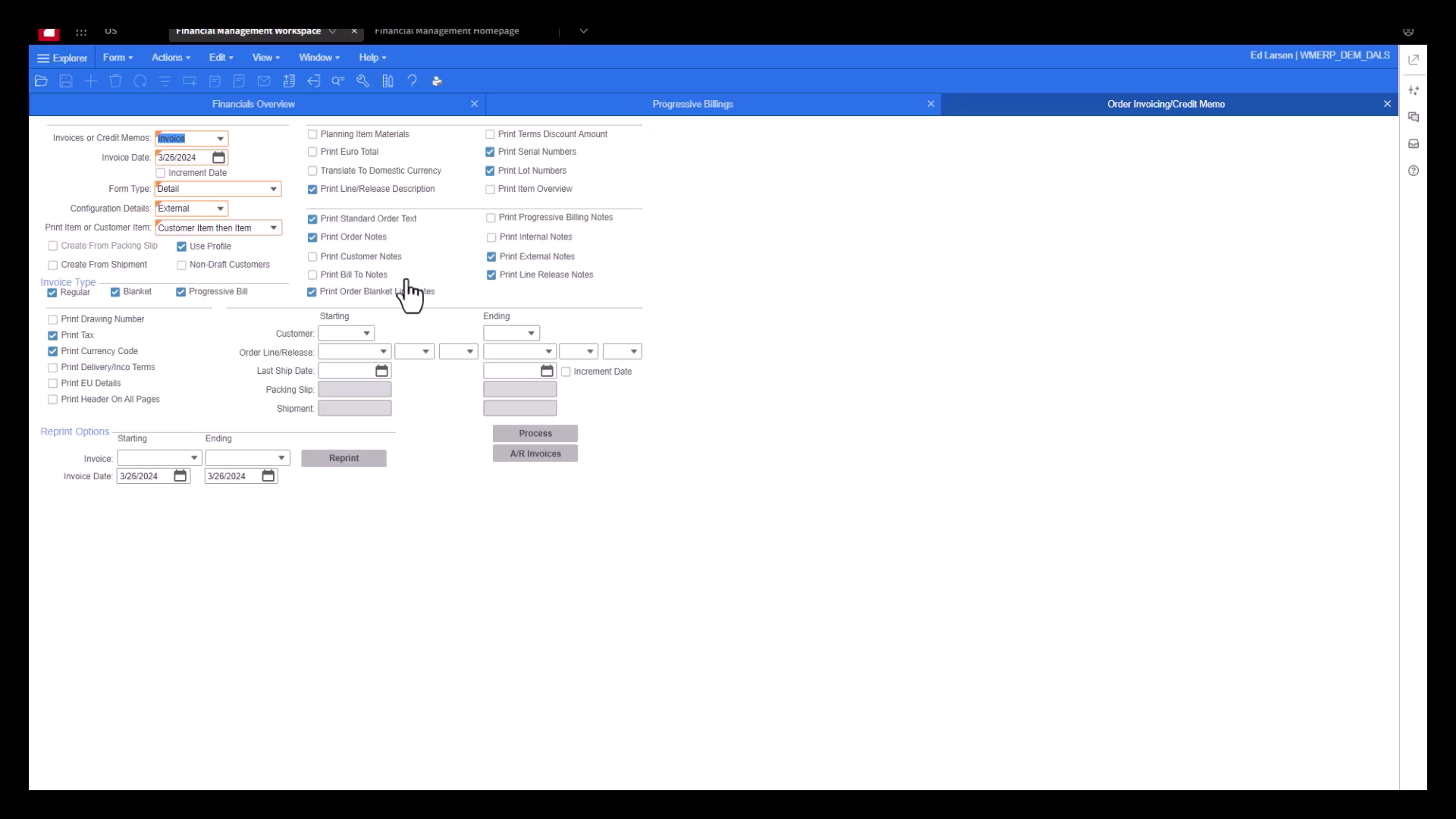
Record the assigned invoice number. Review the generated document: buyer, references, quantities, net amounts, discounts, tax and total. Investigate a difference before posting. Retain a copy with the supporting sale documents.
4. Post the invoice and release it to Azdan
Open Invoice Posting for the correct site. Select the document types and a narrow customer, invoice and date range. Review the transactions listed in the form.
Print the Invoice Transaction Report for the audit trail before posting. Review it, then choose Commit and Process as provided by the form. Read the completion message: a posting run can leave erroneous transactions unposted.
Confirm the invoice appears in A/R Posted Transactions Detail or A/R Posted Transactions Summary. Follow the configured Azdan release. The posted record confirms the receivable; it does not confirm delivery of the electronic invoice.
5. Let the connection prepare the e-invoice
After the configured invoice posting and release, your existing connection prepares the electronic document from Infor CloudSuite Industrial. You continue to work with the original invoice. Do not enter the same sale again in Azdan.
The connection translates the accounting record into the format used for electronic exchange. It carries the invoice details into the appropriate fields; it should not change the agreed sale, tax treatment or document total.
| Information in Infor CloudSuite Industrial | What to match in Azdan |
|---|---|
| Invoice number, invoice date and due date | The final invoice number, issue date and due date. Use the issued number rather than a draft reference. |
| Site/company, customer and bill-to address | The correct seller and buyer, legal names, addresses and electronic delivery identifiers. |
| Invoiced order lines, shipped quantities, prices, discounts and tax | Descriptions, quantities, units, prices, discounts and the taxable amounts. |
| Invoice currency, tax breakdown and original document amount | The invoice currency, tax breakdown and original document total. |
| Order references and payment terms | The customer purchase order, other required references and agreed payment information. |
Azdan validates the document before delivery. If a required value is missing or the figures do not reconcile, use the validation message to identify what needs correcting. A PDF is a readable copy; the connection also sends structured invoice data.
6. Find the invoice in Azdan
Open Invoicing > Transactions > Outbound in the Azdan portal. Search using the Infor CloudSuite Industrial invoice number, customer and selling site. Open the matching transaction.
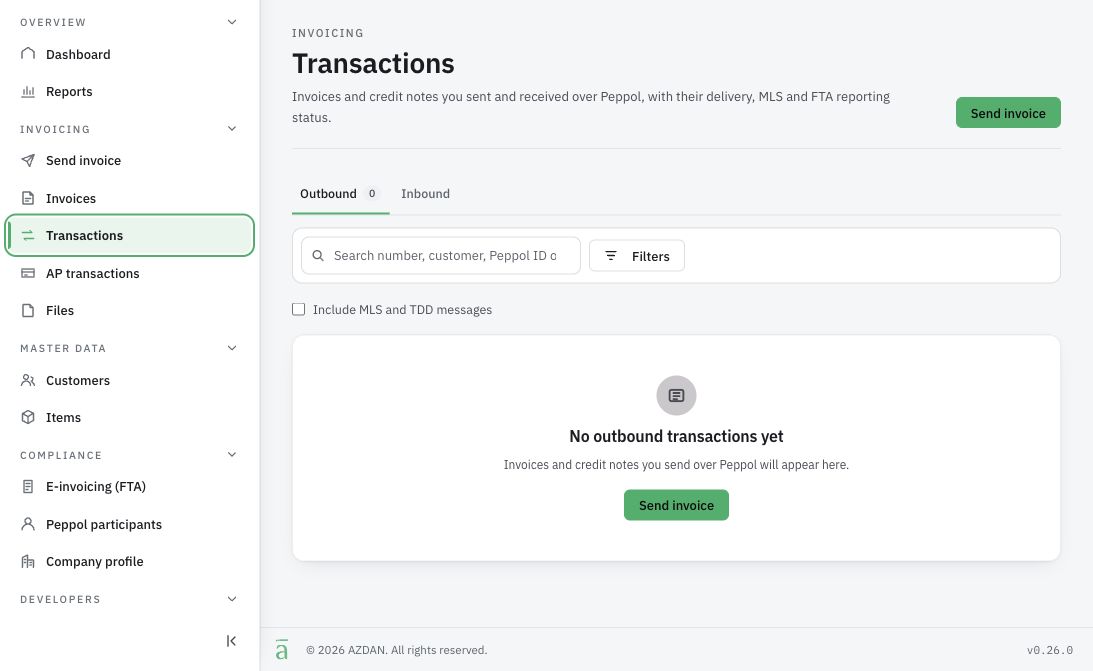
- Confirm the selling company and buyer before comparing amounts. The same number may appear in more than one company or document series.
- Match the invoice date, currency, VAT and document total. Compare the original invoice amount, rather than the remaining customer balance after payments or credits.
- Keep the Azdan transaction reference with the invoice so colleagues can find the same record.
If you cannot find it, clear restrictive filters and check that the Infor CloudSuite Industrial invoice completed its required approval and release. If it remains missing after your normal processing interval, give the administrator the company, invoice number and release time. Keep the original invoice; creating a second one can duplicate the sale.
7. Review delivery, the receiver response and FTA reporting
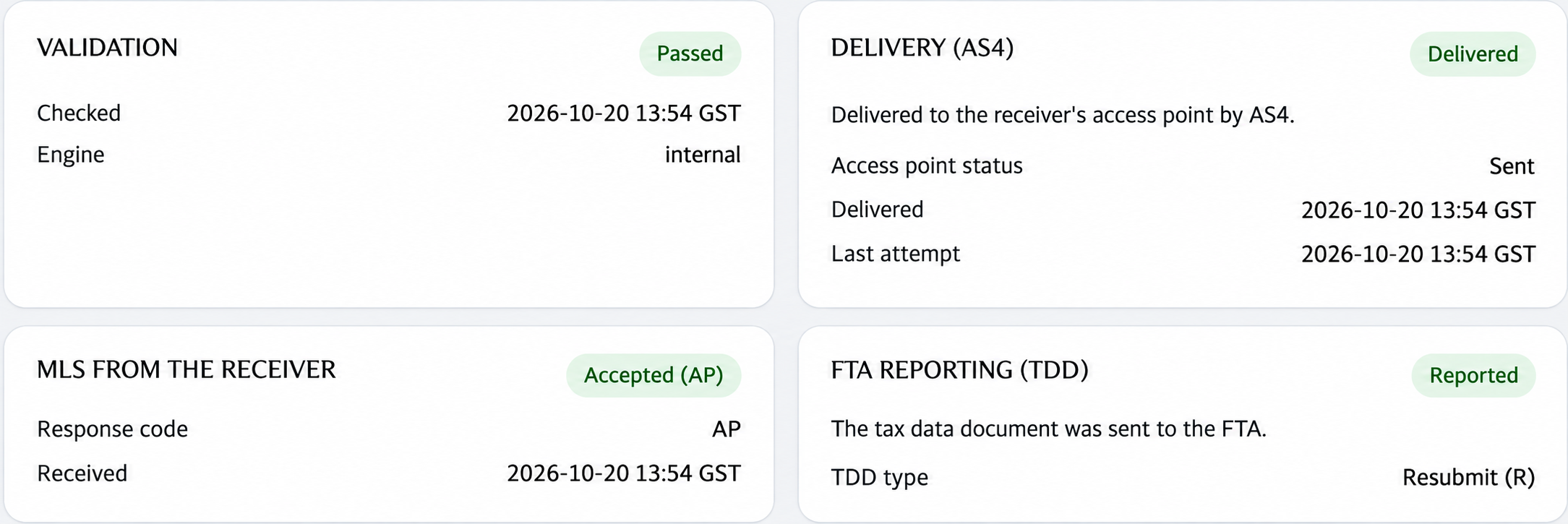
Open the transaction details and read each outcome separately. A successful result in one stage does not close an issue in another stage.
| Result | What to check |
|---|---|
| Validation | Passed means Azdan’s document checks passed. For a failure, read the field, rule or amount identified in the message. |
| Delivery (AS4) | Delivered confirms delivery to the receiving provider. It does not confirm buyer approval or payment. |
| Receiver response (MLS) | Read the response and any reason supplied. Technical acceptance is separate from commercial approval of the invoice. |
| FTA Reporting (TDD) | Review the reporting result and available response details. Reported means tax data was sent; that label alone does not establish FTA acceptance. |
The results may arrive at different times. Retain the available invoice, response and reporting records under your company’s filing process. Record any outstanding result and who will follow it up.
8. Resolve an exception without duplicating the invoice
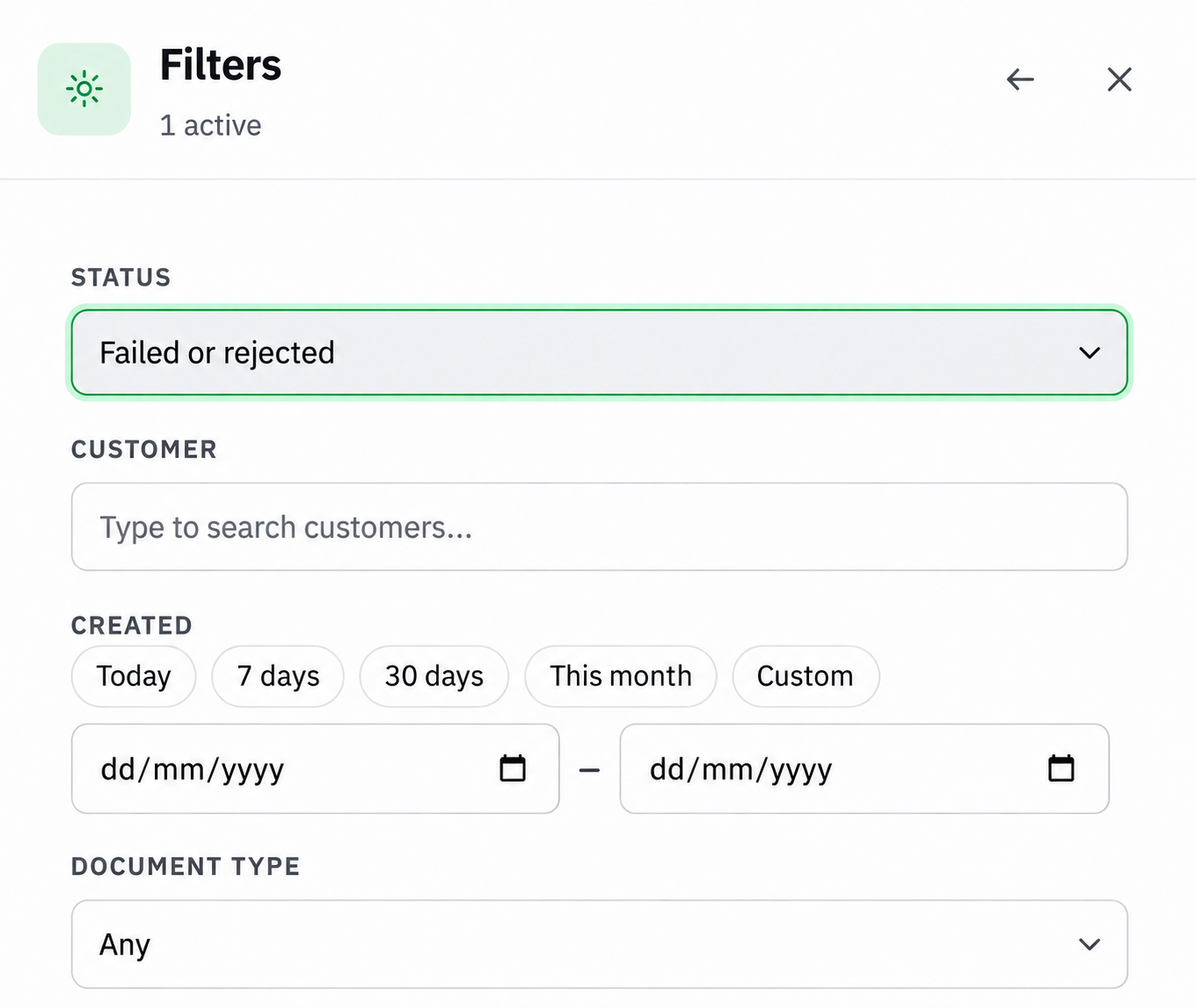
In Azdan Transactions, open Filters, choose Failed or rejected, set the date range and apply the filter. Review In progress separately. Open an affected transaction and read its message before taking action.
- Incorrect customer or invoice information: Compare the named field with Infor CloudSuite Industrial. Updating a customer master does not necessarily change an invoice already issued or prepared for sending.
- Failure before delivery: Have the accounting owner approve the correction, check whether any attempt already reached the receiving provider, then use your configured correction and retry process.
- Still in progress: Allow scheduled processing and automatic retries to complete. Avoid repeated submissions. Escalate a stalled transaction with its invoice number, Azdan reference, exact message and time.
- Receiver or FTA rejection: Assign the message to the responsible colleague and follow the required correction route. A delivered invoice can still have an unresolved receiver or reporting result.
Do not delete, cancel or recreate a posted Infor CloudSuite Industrial invoice simply to refresh an e-invoicing result. If the original accounting document must change, the finance owner should decide whether a credit note or another approved correction is required.
9. Create and post the appropriate credit memo
Find the original invoice and confirm the approved reason and amount. For a return of inventory, complete the authorized customer-return or negative-shipment process first, then generate the credit through Order Invoicing/Credit Memo with Credit Memo selected.
For a financial credit that is not a sale or return of inventory, use the approved Invoices, Debit and Credit Memos route. Select the credit type and enter the original invoice in Apply To Invoice where applicable. Check the customer, site, currency, tax treatment and distributions.
- Keep the original invoice reference in the information sent to Azdan, even where the accounting system permits an open credit.
- Review the credit against the original invoice and earlier adjustments. Confirm the sign and amount under the selected credit type.
- Print the transaction report and post the credit through Invoice Posting. Check its own number and the posting result.
- Review the application to the original invoice in A/R Posted Transactions Detail. An unapplied credit must still be reconciled.
Release the approved credit through your existing Infor CloudSuite Industrial connection. Find its own number in Azdan, check the original invoice reference and credited amounts, then repeat the checks in steps 6–8. Keep the invoice and credit note together. Applying a credit to the customer balance or issuing a refund is a separate accounting task.
10. Return to the original Infor CloudSuite Industrial invoice
Open A/R Posted Transactions Detail for the original customer and invoice. Review its original amount, applied credits, payments and remaining balance. Use the original invoice amount when matching it to Azdan.
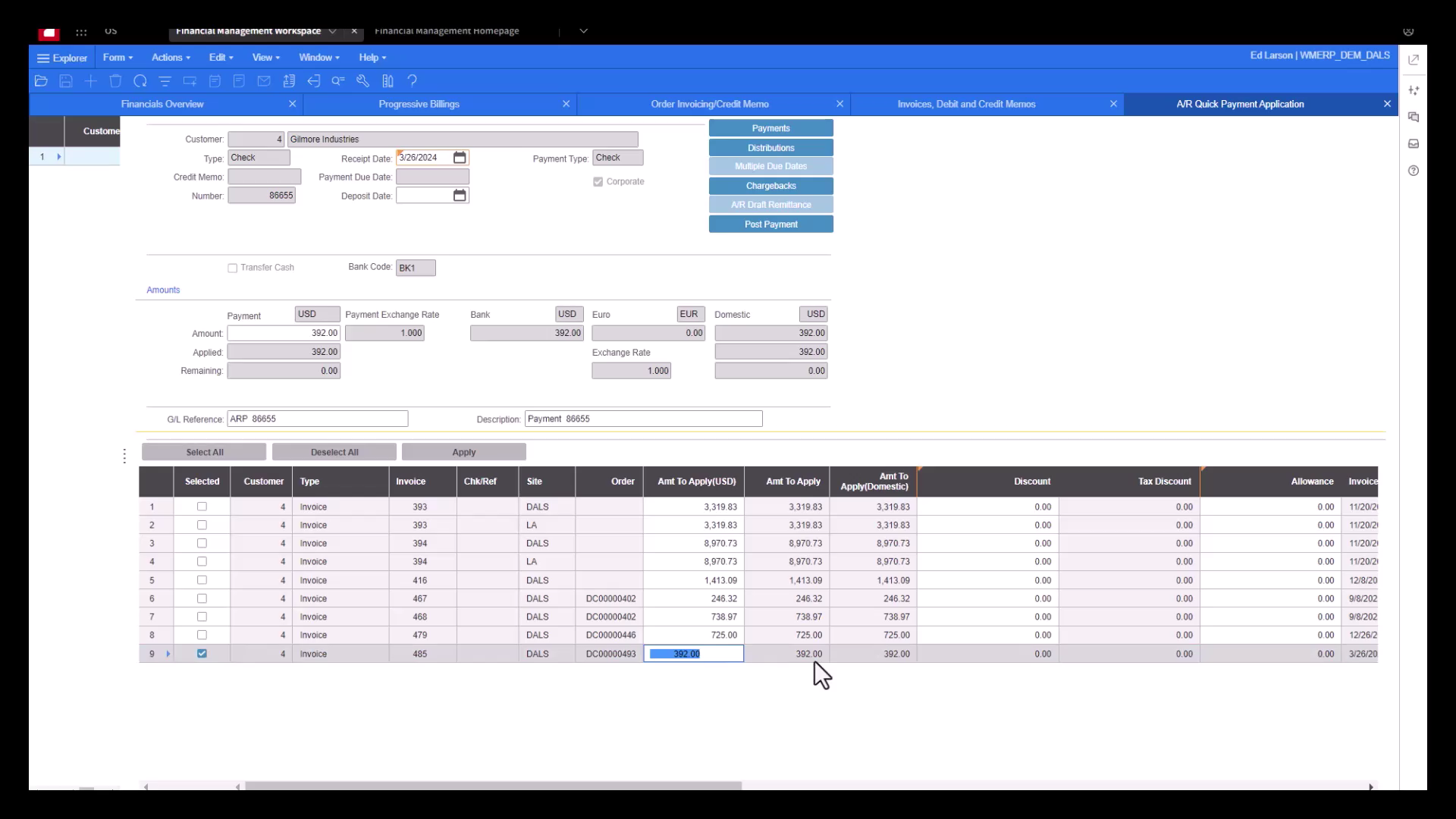
- Match the company, buyer, invoice number, currency, VAT and original total to the Azdan transaction.
- Open the integration result fields, linked record, note or attachment used by your company. Check the Azdan reference, latest outcomes and last update time.
- If the returned information is missing or older than Azdan, ask the administrator to investigate the return update. Keep the transaction reference and latest portal result available.
- Check any related credit note under its own number. Review payment, allocation and refund records separately from electronic delivery.
Finish the review when the accounting record and Azdan transaction match, the amounts agree, the returned results have been checked and every unresolved issue has an owner.
Your company’s existing configuration determines the release action and where Azdan results appear.
Related guides
Azdan UAE E-Invoice documentation