
Guide and reference
Finding records and working with lists
Use lists to locate existing business records and use the record view to review their details. Open an existing record before creating another record for the same business event.
Navigation: Use Browse on the launch page or select the record list from Property Management or Facility Management.
Workspace overview
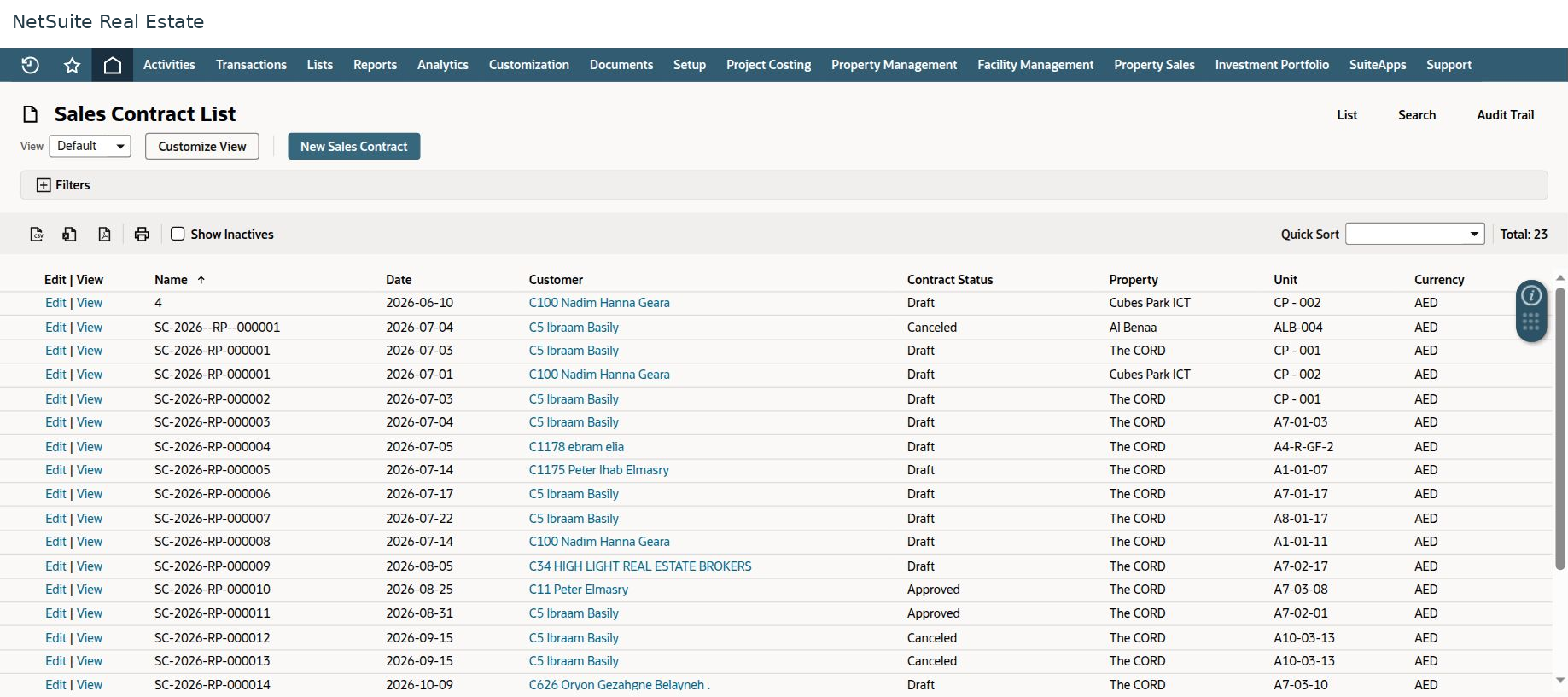
Before you begin
Have a record number, property, unit, customer, tenant, or date range available. A record number is usually the most precise starting point.
Procedure
- Open the relevant list and select an appropriate View. Expand Filters when you need to narrow the results.
- Locate the record and click View. Use Edit only when you intend to change the record and have the required permission.
- Review the primary information, status, and classifications. Open the relevant subtabs for charges, related transactions, documents, notes, or workflow history.
- Follow related-record links to confirm the source and subsequent records. Use List or Back to return to the previous context.
- When exporting results, retain the filters and date basis with the exported information so other users can interpret it correctly.
Result
You can identify the correct record and its place in the business cycle without creating duplicates.
Important
A missing record can result from filters, an inactive record, a role restriction, or a different subsidiary. Check those conditions before requesting a new record. Displayed totals may count grouped results rather than individual units or transactions.